Friday, January 15, 2010

Jailbreak iPhone. What next?

Important Blackra1n note

Blackra1n does not create the afc2 service needed by iPhoneBrowser.
You can install the afc2add program in Cydia to add the service.
You can
1. (I didn't try that one) manually create the service by editting the Services.plist file or using Erica Sadun's plutil. See http://code.google.com/p/iphonebrowser/issues/detail?id=153 or http://modmyi.com/forums/general/687870-blackra1n-iphonebrowser-2.html#post4991312

2. (the best) go to cydia sources press edit and add two of the following: http://cydia.xsellize.com/ and http://cydia.hackulo.us/
it will let you to install anything you need including afc and any cracked apps.
Injoy!!

Saturday, January 9, 2010

Video Camera for 3G available now on iTunes.


iVideoCamera lets you record a short video on your iPhone 2G or 3G, you can then save it in your camera roll or share it  to Youtube, Facebook or Vimeo. I just did try it out hoping to uninstall my videorecorder soft from xsellize but not it so much worse in terms of quality...
iVideoCamera Brings Video Recording To The iPhone 3G
The quality of the video isn’t the best, but according to the developers they are working on an update which will improve the video quality and also the frame rate.
Currently the application only captures about three frames per second, and the videos are limited to just one minutes in length.
We have just had a brief play with the iVideoCamera application, and the quality isn’t the best, I would recommend holding off buying it until the developers release an update with improved quality and frame rates.
The iVideoCamera app is available for $0.99 USD from iTunes.

Sunday, December 27, 2009

iPhone secret tip of the day


To stop an incoming call from ringing, press the sleep / wake button. To send the call immediately to VoiceMail, press the sleep / wake button twice.

Jailbreak iPhone 3.1.2 firmware

100% working Jailbreak iPhone 3.1.2 firmware

Using custom build firmaware didn't work for me. So I used blakra1n tool and I should say it's the best tool ever! It's fast and easy.

Step 1: Download the latest version of iTunes if you haven’t already.(Download link)

Step 2
: Update/restore to the original (stock) iPhone firmware 3.1.2 on your iPhone by using the latest version of iTunes.

Download
iPhone OS 3.1.2 for iPhone 2G
Download
iPhone OS 3.1.2 for iPhone 3G
Download
iPhone OS 3.1.2 for iPhone 3GS

Step 3: You will now have to jailbreak your iPhone running on iPhone 3.1.2 firmware with blackra1n RC3. Follow the complete step by step guide posted before in order to jailbreak your iPhone 3G/3GS with blackra1n RC3.
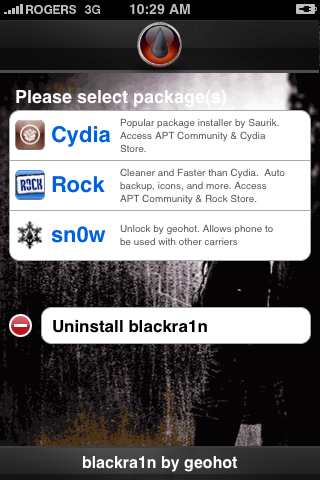
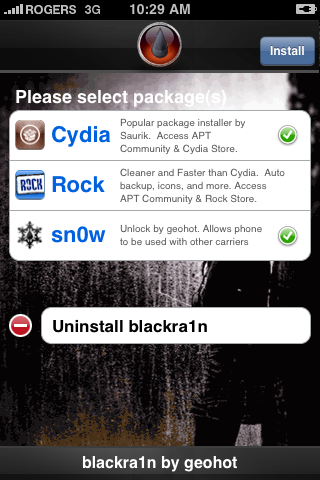
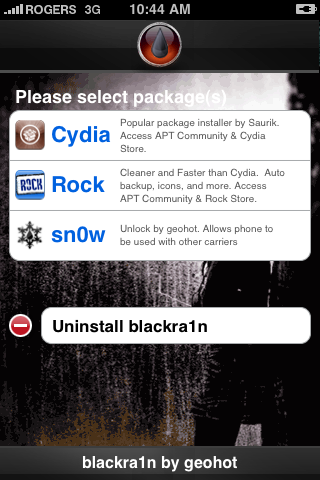
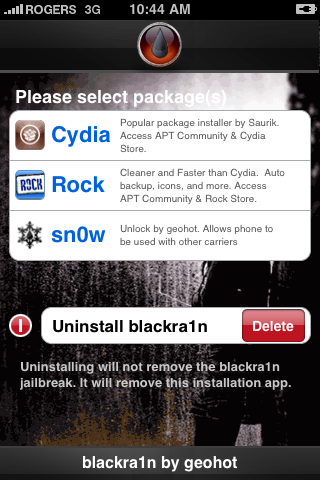
Step 4: Once you are done with the jailbreak choose the installer application of your choice then press to select Cydia. Press the Install button at the top right of the screen to begin.


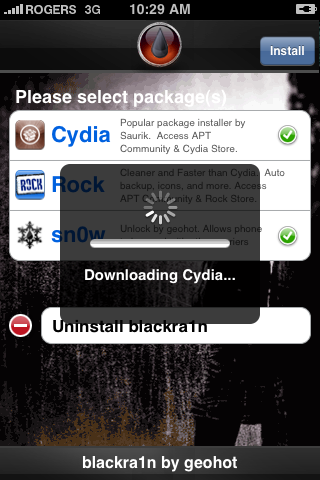
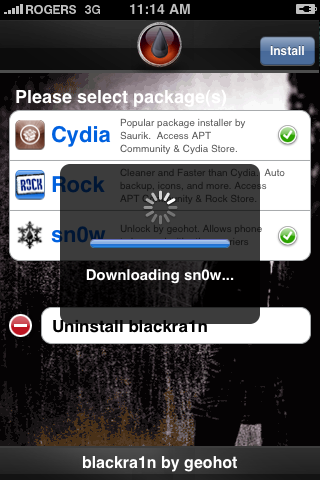
BlackRa1n will begin to download and install the package you selected.


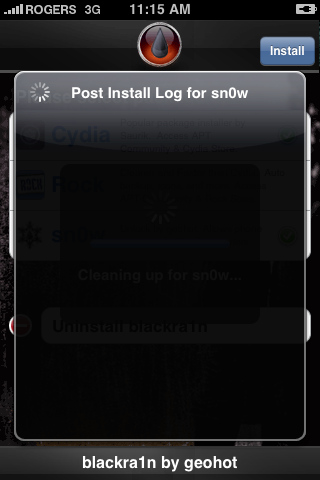
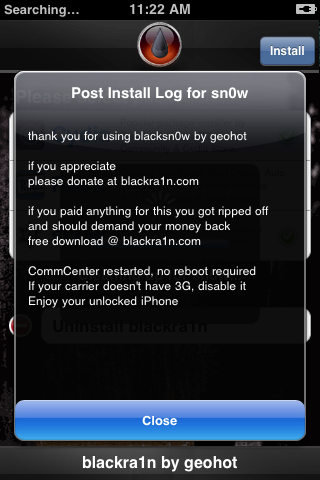
If you chose to unlock device using blacksn0w you will be presented with a Post Install log for sn0w. CommCenter will be restarted and there is no need to reboot. If your carrier doesn't support 3G then disable it. Press the Close button to continue.


Step 5
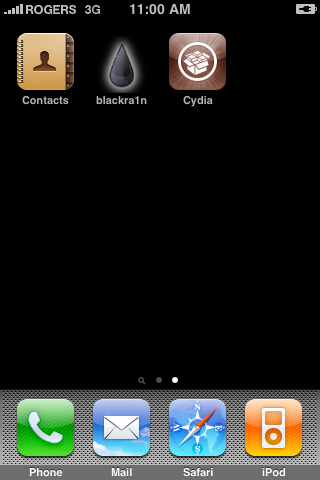
Once complete BlackRa1n will respring your iPhone and you will find the installer package of your choice on the Springboard.


Step 6
Once you have confirmed your installer package is working correctly you may use the Uninstall blackra1n button inside the BlackRa1n app to remove it from your springboard.

Friday, December 25, 2009

Download iPhone OS 3.1.2 Custom Firmware (IPSW Files) for iPhone 3GS, 3G, 2G

You can jailbreak iPhone OS 3.1.2 by creating Custom IPSW file using PwnageTool. For now, PwnageTool is available for Mac only. So, only Mac users are able to create custom firmwares. What if you’re on Windows? and do not own a Mac or don’t want to go through the PwnageTool procedure if so, this topic is for you.
Below you can download iPhone OS 3.1.2 Custom firmware for iPhone 3GS, iPhone 3G and iPhone 2G. These custom firmwares are created with PwnageTool and can be restored using iTunes.

IMPORTANT
There are two types of Custom Firmwares available for download below.
  1. ACTIVATED: This custom IPSW file is for users who want to unlock their iPhone which means they are NOT on Official Carrier only.
  2. NOT ACTIVATED: This custom IPSW file is for users who are on Official Carrier only.
So make your choice wisely. You’ll know whether you made the right choice or not once you successfully get the Signals or could Not.

How to Install Custom Firmware:

  1. Download the custom firmware (IPSW) (all parts) for your device from links below.
  2. Join the splitted custom IPSW file by unpacking them:
    • Mac Users: use BetterZip ( or what ever you want )
    • Windows Users: use HJSplit ( or what ever you want)

  3. Put iPhone in recovery mode. (How to put iPhone into Recovery Mode)
  4. Press the Shift button for Windows or ALT for Mac and click restore and used the custom ipsw.
  5. It will start restoring your iPhone which may take 10mins and will jailbreak iPhone. (iPhone 2G users are done here >Jailbreak+Unlock<. enjoy OS 3.1.2.)
  6. iPhone 3GS and 3G users who want to unlock iPhone needs to install UltraSn0w using following guide:

    How to Unlock iPhone 3GS and 3G using UltraSn0w (This works for OS 3.1.2 as well)

Once all done successfully, you can enable Tethering hack on OS 3.1.2.

Download iPhone OS 3.1.2 Custom Firmware (IPSW Files):


iPhone 3GS Custom IPSW

Activated (for UnOfficial Carrier Users)
RAPIDSHARE:
iPhone2_1_3.1.2_7D11_Custom_Restore_Activated.001
iPhone2_1_3.1.2_7D11_Custom_Restore_Activated.002
iPhone2_1_3.1.2_7D11_Custom_Restore_Activated.003
iPhone2_1_3.1.2_7D11_Custom_Restore_Activated.004
MEGAUPLOAD:
iPhone2_1_3.1.2_7D11_Custom_Restore_Activated.001
iPhone2_1_3.1.2_7D11_Custom_Restore_Activated.002
iPhone2_1_3.1.2_7D11_Custom_Restore_Activated.003
iPhone2_1_3.1.2_7D11_Custom_Restore_Activated.004
NOT Activated (for Official Carrier Users)
RAPIDSHARE:
iPhone2_1_3.1.2_7D11_Custom_Restore_NOT_Activated.001
iPhone2_1_3.1.2_7D11_Custom_Restore_NOT_Activated.002
iPhone2_1_3.1.2_7D11_Custom_Restore_NOT_Activated.003
iPhone2_1_3.1.2_7D11_Custom_Restore_NOT_Activated.004
MEGAUPLOAD:
iPhone2_1_3.1.2_7D11_Custom_Restore_NOT_Activated.001
iPhone2_1_3.1.2_7D11_Custom_Restore_NOT_Activated.002
iPhone2_1_3.1.2_7D11_Custom_Restore_NOT_Activated.003
iPhone2_1_3.1.2_7D11_Custom_Restore_NOT_Activated.004

iPhone 3G Custom IPSW

Activated (for UnOfficial Carrier Users)
RAPIDSHARE:
iPhone1_2_3.1.2_7D11_Custom_Restore-Activated.001
iPhone1_2_3.1.2_7D11_Custom_Restore-Activated.002
iPhone1_2_3.1.2_7D11_Custom_Restore-Activated.003
MEGAUPLOAD:
iPhone1_2_3.1.2_7D11_Custom_Restore-Activated.001
iPhone1_2_3.1.2_7D11_Custom_Restore-Activated.002
iPhone1_2_3.1.2_7D11_Custom_Restore-Activated.003
NOT Activated (for Official Carrier Users)
iPhone1_2_3.1.2_7D11_Custom_Restore_NOT_Activated.001
iPhone1_2_3.1.2_7D11_Custom_Restore_NOT_Activated.002
iPhone1_2_3.1.2_7D11_Custom_Restore_NOT_Activated.003

iPhone 2G Custom IPSW

Activated (for UnOfficial Carrier Users)
RAPIDSHARE:
iPhone1_1_3.1.2_7D11_Custom_Restore_Activated.001
iPhone1_1_3.1.2_7D11_Custom_Restore_Activated.002
iPhone1_1_3.1.2_7D11_Custom_Restore_Activated.003
MEGAUPLOAD:
iPhone1_1_3.1.2_7D11_Custom_Restore_Activated.001
iPhone1_1_3.1.2_7D11_Custom_Restore_Activated.002
iPhone1_1_3.1.2_7D11_Custom_Restore_Activated.003

Monday, December 21, 2009

PC Suite for iPhone v2.7.0.112

http://www.tunethatup.com/utilitaes
Best option for backups and more
DownloadVersion :2.7.0.112
Requirements :1.0.1,1.0.2,1.1.1,1.1.2,1.1.3,1.1.4,2.0,2.0.1,2.0.2,2.1,2.2,2.2.1,3.0,3.0.1,3.1,3.1.2

Size : 32719 kb
License: Free
Downloads:154126
Description

PC Suite fully supports mobile phones on the iPhone, Android and Windows Mobile platforms. As long as you have PC Suite, massive resources are free to access.

Free! - PC Suite is totally free to use. Additionally, it offers free technical support, free resources downloading and installation

Manage your smart phone easily and safely! - Back up and import contacts, back up and import call logs and SMS records, set the ringtones, themes and wallpapers, manage the system, memory and registry of the phone, install and uninstall software, manage schedule…you can manage all functions and settings on your smart phone.

Chat via SMS! - You can chat with your friends and family via the SMS online on your PC easily.
Massive resources, free to install! - Wallpapers, ringtones, themes, softwares, games and eBooks, FREE is our eternal principle.
Gorgeous use experience! - We integrate the iPhone style in PC Suite to make you enjoy the most fashionable interface and feel the most considerate operation during your use.

PC Suite for iPhone update to V2.7.0.112 (Dec. 14, 2009)

Sunday, December 13, 2009

 
As we had posted some days back about Blacksn0w first ever tool to unlock iPhone OS 3.1.2 with baseband 05.11.07 is ready now and all set to release. Geohot has confirmed that its successfully working on iPhone OS 3.1.2.

Blacksn0w will be available via Blackra1n RC3, in order to unlock iPhone 3G/3Gs 3.1.2 you need to first upgrade to firmware 3.1.2 and then download Blackra1n for windows/mac and click on make it ra1n. once your iPhone reboots you will see “blackra1n” app click on it You will see “sn0w”. Install this, and enjoy your unlocked iPhone.

Features of Blackra1n RC3

1. Hacktivation support,

2. 15 second speed improvement,

3. Tiger+PPC support,

4. and installation of the latest blackra1n.app


Download Blackra1n RC3 to Jailbreak & Unlock iPhone 3.1.2.

Here is what’s important to note:

* BlackSn0w unlocks baseband 05.11.07
* BlackSn0w enables internet tethering
* BlackSn0w is for iPhone 3G and 3GS users only


Those of you with iPhone 2G should follow the guide posted here for unlocking and jailbreaking 3.1.2 firmware. Here is a complete step by step guide on how to unlock iPhone 3G and 3GS running 3.1.2 firmware on 05.11.07 baseband with blacksn0w.

NOTE: Those of you who have already installed blackra1n RC1 or RC2 should just run the the app and touch on “ra1n”, which has been added now instead of “Icy”. This will upgrade blackra1n to RC3. Now simply follow the instruction written in Step 5 below to unlock your iPhone.
with 3.1.2 firmware on 05.11.07 baseband.


How to unlock iPhone 3.1.2 with blackSn0w?

* As mentioned above, if you previously jailbroke your iPhone using BlackRa1n and you kept the blackra1n.app on it, then run BlackRa1n. The Icy icon should be replaced by the “ra1n” option. Select “ra1n” to upgrade BlackRa1n to RC3. After upgrading, run BlackRa1n and you should see the “sn0w” option. Just select “sn0w” and it will unlock your iPhone.
* If you were waiting to update to 3.1.2 or if your iPhone was stuck locked, then download BlackSn0w, run it, reboot, and choose the “sn0w” option from the BlackRa1n.app.
* If your iPhone was previously jailbroken using PwnageTool or if you deleted the BlackRa1n.app from your iPhone, BlackSn0w will be added to Cydia later during the day
.

Step 1: Download the latest version of iTunes if you haven’t already.(Download link)

Step 2
: Update/restore to the original (stock) iPhone firmware 3.1.2 on your iPhone by using the latest version of iTunes.

Download iPhone OS 3.1.2 for iPhone 2G
Download iPhone OS 3.1.2 for iPhone 3G
Download iPhone OS 3.1.2 for iPhone 3GS

Step 3: You will now have to jailbreak your iPhone running on iPhone 3.1.2 firmware with blackra1n RC3. Follow the complete step by step guide posted before in order to jailbreak your iPhone 3G/3GS with blackra1n RC3.
Step 4: Once you are done with the jailbreak, start the blackra1n app and you should now see “sn0w” option as can be seen from the screenshot below:


Step 5: Now simply touch on “sn0w” to install blacksn0w on your iPhone. This will automatically unlock your iPhone 3G/3GS running 3.1.2 firmware on 05.11.07 baseband.

blacksn0w will soon be available on Cydia too. If you have upgraded to 3.1.2 firmware with PwnageTool 3.1.4, then you will soon be able to unlock your iPhone with 05.11.07 baseband with ease. Stay tuned for more updates on this!

Sunday, November 29, 2009

Best ssh and backup tool

Features of iPhone PC Suite 2.6 :


- Free! - 91 PC Suite is totally free to use. Additionally, it offers free technical support, free resources downloading and installation 。free paid mobile phone resources cracked and shared by friends on the internet.
- Manage your smart phone easily and safely! - Back up and import contacts, back up and import call logs and SMS records, set the ringtones, themes and wallpapers, manage the system, memory and registry of the phone, install and uninstall software, manage schedule…you can manage all functions and settings on your smart phone.
- Chat via SMS! - You can chat with your friends and family via the SMS online on your PC easily.
- Massive resources, free to install! - Wallpapers, ringtones, themes, softwares, games and eBooks, FREE is our eternal principle.
- Gorgeous use experience! - We integrate the iPhone style in PC Suite to make you enjoy the most fashionable interface and feel the most considerate operation during your use.
• Key Technologies (iPhone Edition):
- Support 64-bit Windows XP/Vista OS
- Import/Export contacts
- Back up call logs/SMS
- Download massive wallpapers, ringtones, themes and softwares
- Convenient and practical RSS subscription
- Log off & Reboot
- Full support for firmware iPhone 3.0
- Perfect UI performance
- Phone process and system registry management
- Phone software installation, uninstallation and management
- Calendar and schedule management
- Caller location inquiry

How to change the language :

- iPhone PC Suite has the English language file included in its LangPack folder. To make it default you have to run the installer first - of course ;). After the installation process is complete, close the iPhone PC Suite and go to: My computer > C Drive > Program Files > NetDragon > 91 Mobile > iPhone > LangPack, and delete everything, excepting the "en-US.lang" file.

Changes in iPhone PC Suite 2.6 :

• New Functions:
- Added “Happy Message” function in SMS chat that allows you to insert various holiday short messages we provide into the SMS input field.
- In Apps management, added the function that allows you to import Cydia sources from iPhone to the PC Suite.
- In Apps management, added the source filter function that allows you to select a certain Cydia source to show apps in this source so that you can search apps more quickly.
- In Ringtones management, added the “replace” function that allows you to replace the system sound (such as calendar and new mail notice ring) with your downloaded ringtone.
• Function Improvements:
- Optimized the local Deb software installation function in Apps management. Now when you are installing deb software that requires the support of other software, the PC Suite will help you install such dependent software first before installing target deb software.
- Optimized the deb software support and processing in Apps management to make it more stable and reliable.
- Improved the auto-update function to make sure that your PC Suite can still be updated normally under special circumstances.
- Improved the loading logic of installed software list in Apps management to avoid unnecessary loading; the uninstallation function is also available in downloaded software interface now.
- Other function improvements.
• Bug Fixes:
- Fixed the problem that the program may crash when you delete a downloading task in Apps management.
- Fixed the problem that the “iPhone to iPhone” transfer mode may not be functional and the plugged in iPhone cannot be recognized under Wi-Fi environment in One-key Transfer.
- Fixed the problem that the prompt “No item is selected to restore” may still pop up when you have added items to the recovery list in Recovery function.
- Fixed the problem that you may not be able to subscribe news when the PC Suite fails to download and replace configuration file of RSS.
- Fixed the problem that when you enter a telephone number in SMS chat to add a receiver, the number may match with a wrong contact.
- Fixed the problem that when you enter a telephone number in SMS chat to add a receiver, there may be two identical receivers appearing in the receiver column.
- Fixed the problem that there may be two identical telephone numbers appearing on the SMS delivery success and failure interfaces.
- Fixed the problem that when you prefix an added telephone number with +86 in SMS chat, such number may not correctly match with an existing contact
- Fixed the problem that the “SMS” icon may be covered when you type in SMS content.
- Other bug fixes.
Download iPhone PC Suite

Friday, November 27, 2009

Some concepts are way off the charts when it comes to realism, and practicality while others are pretty much doable. Take a look at the specifications of this next generation iPhone 3G and let us know whether it can be achieved or not in the near future without being a burden on your already beleaguered bank accounts. We think the former is possible, although the latter doesn't look like changing anytime soon, next generation iPhone 3G or not.

Titanium and glass
OLED screen
3G connectivity
GPS support
Front camera for iChat
Removable battery (finally)
3.2 megapixel camera
Video playback

Thursday, November 26, 2009

iPhone 4G 2010 concept


The iPhone 4G has new updated features: OLED display passed for clarity and superior contrast, it also has 3.2 megapixel camera and video function, a camera for iChat is on the front, and the internal memory increased to 32GB.
We hope that we'll see the new 4G iPhone sooner and that it will be a cool gadget like the others that we already have been seen by now.

Tuesday, November 24, 2009

How to Back Up your iPhone without using iTunes.


The iPhone has a fully functional SysV-style Unix file system on it... meaning that, from Cydia, you can install an OpenSSH daemon and Terminal app for your iPhone, and then do WHATEVER you want with it. Once the Terminal is installed, you'll find that most file and network commands you'd get on the Mac are available on the iPhone. That makes it a Unix box in your pocket, meaning that you can script any damn thing you want it to do, just like you could do in the Terminal on your Mac or Linux box.

Long story short -- I'm currently using WinSCP to backup the entire filesystem on my iPhone to my laptop. As of 5 mins from now, though, I'll have the iPhone added to the network auto-backup script on my Linux box. WooHoo!!

Google for "rsync", and you'll see what I mean. :)

Friday, November 20, 2009

Lockinfo app is not free anymore?


Boo mr. Ashman! I have downloaded it as free open source app almost a year ago and now all of the sudden you charging me 11 NZD? That sucks! As I love my lockscreen appearance I have spend good part of the night to find a solution for it.

One of the solutions was to install crack lockinfo 1.0.113_cracked.deb and another to install backed up files of previous  working version of lockinfo (please refer to http://xsellize.com/showthread.php?t=64857&page=2).
The solution with crack worked only for few hours then it stopped so I needed to respring it again and again in order to make it work.

I ended up uninstalling lockinfo including crack file. and cleaning up all lockinfo files (see txt file How_to_restore_lockinfo)  After this Ive downloaded files given below and dropped them into locations given above by LEXS1411; 01-October-2009 at 03:44 PM.. Thanks a lot LEXS1411!!